Trim wheel
|
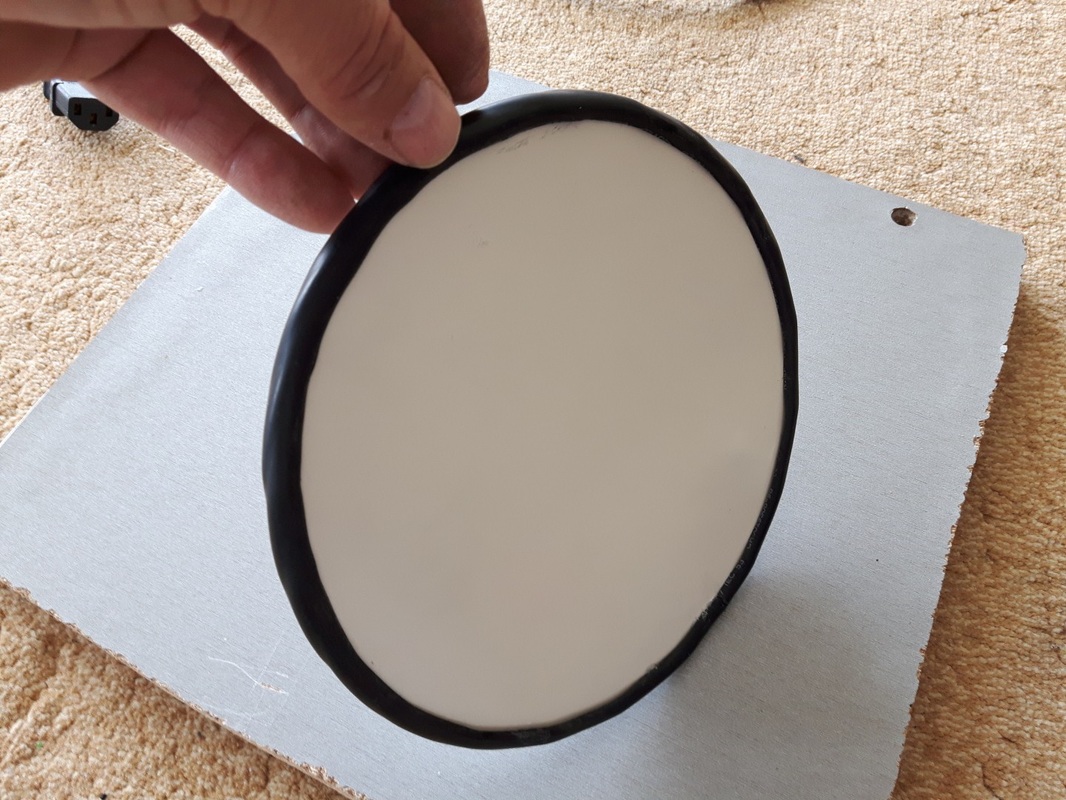
To build the trim wheel, i found an alucobond circle i had laying there that i had probably cut for a project time ago which had a diameter of 15 cm and i thought i'm going to use that instead of cutting a new one. I took an old PC Power Supply cable and cut the rubber open. I had to be very careful to cut it as straight as possible. Then, using CA glue, i glued it to the circle and painted the whole wheel in black. Also opened the channel in the panel where the wheel will be mounted. To use the wheel i'm planning to use a mouse. I will mount a shaft on the middle of the wheel and connect it to a mouse wheel (using mous wheel encoder) which will then be connected directly to pc using the usb port, this way i will spare an input on my Arduino. Since the mouse has three more switches, i'm thinking on using two of them for the brakes and one, well i don't know yet, i'll see. I'm also looking for spheres that i could glue to the wheel to make it look more realistic.
|
|
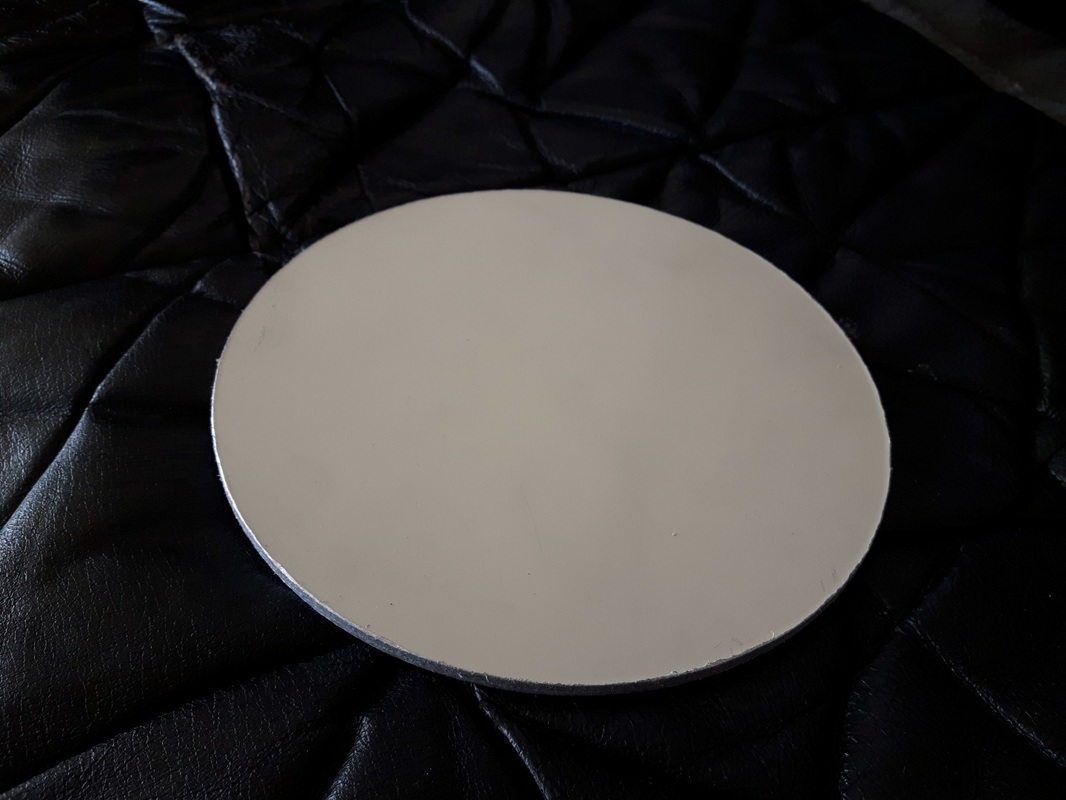
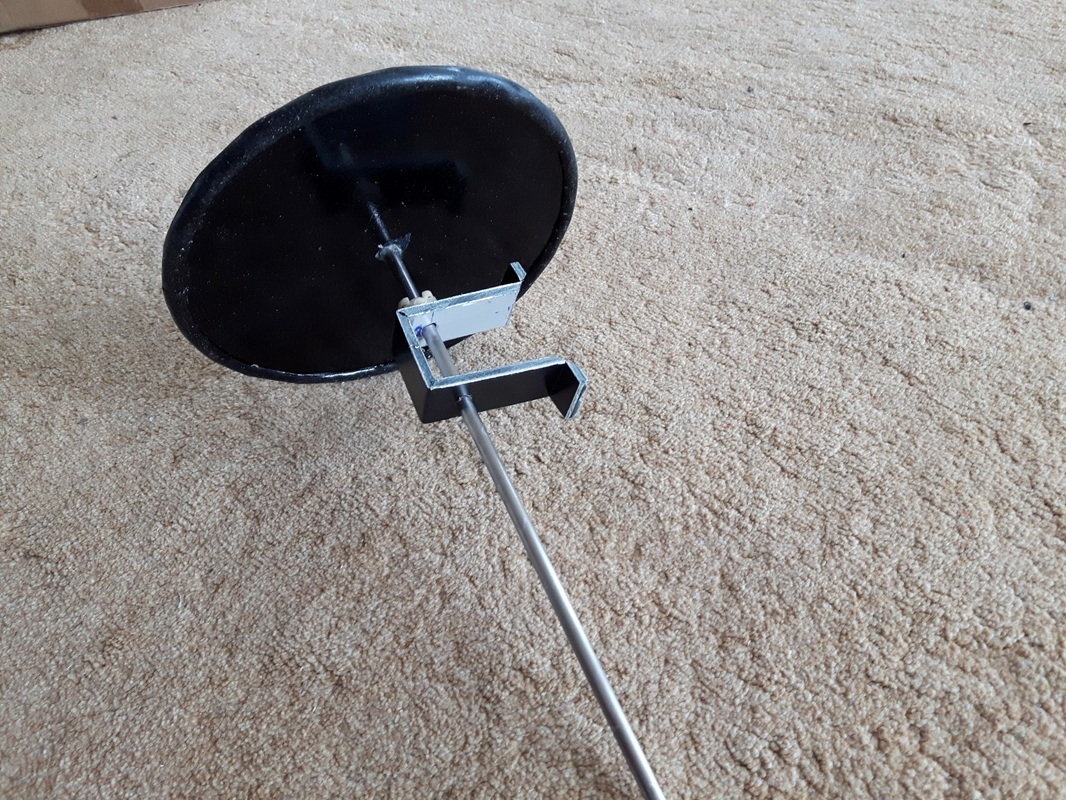
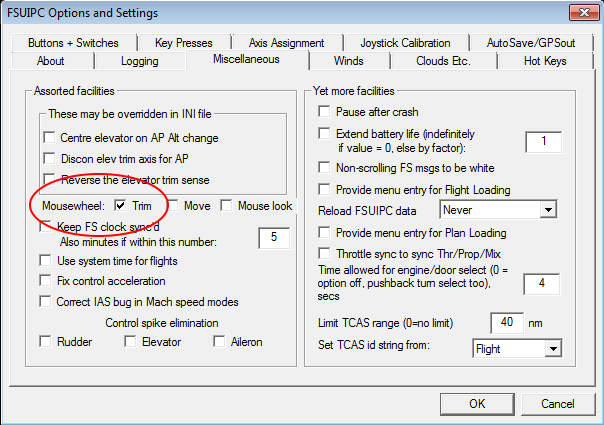
You can follow the pictures to see how Installed the trim wheel using a mouse. The wheel is not finished yet, I will sand it and paint it again for a better look and will try to find some spheres to glue them on the wheel. After installing the wheel, under FSUIPC -> Miscellanous and check the Trim option next to Mousewheel. This way you will be able to controll the elevator trim using mousewheel. If you happen to have the wheel rotating the opposite direciton, you can find mouse programs on internet to reverse the direction of the mousewheel, that's what i'm doing myself.
3D Printed Trim wheel
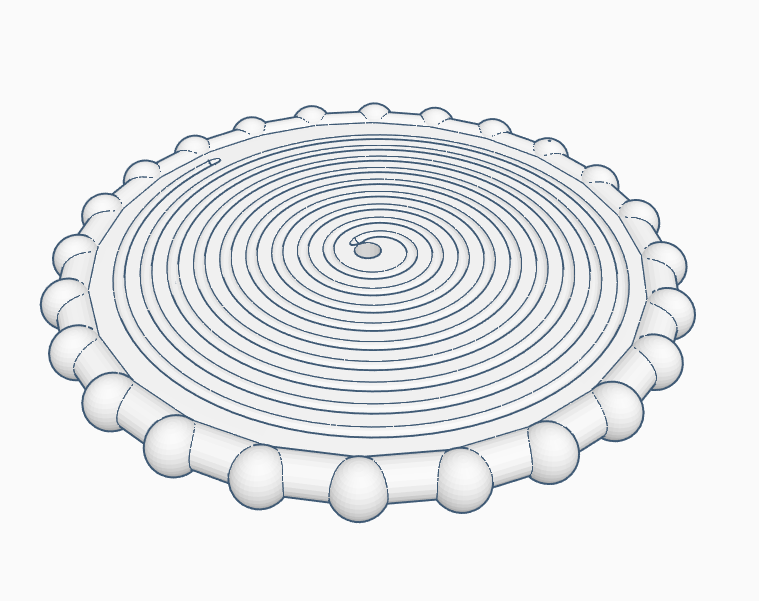
Here is a prototype made by Hannes1 (www.modellbau-technik.at)
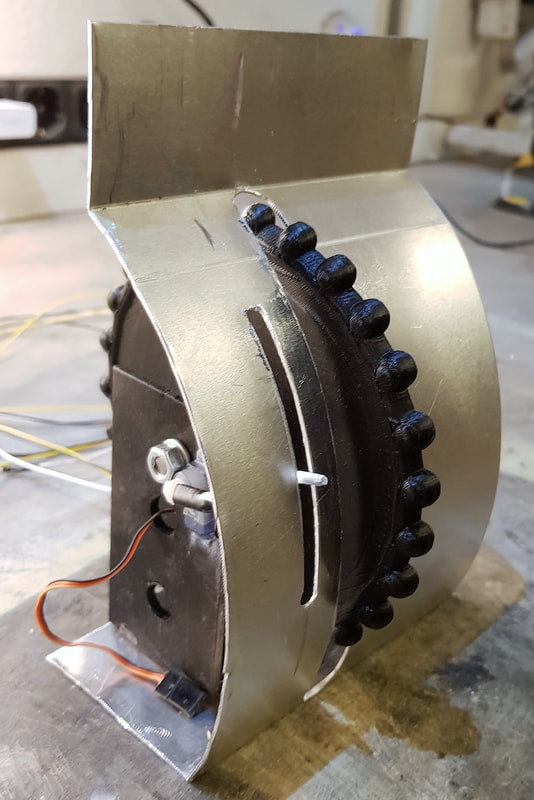
2015, Copyright AlbEAGLE