Your dream flight . . .
  • Home
  • Cessna 172 Cockpit
    • Main Panel
    • Decals
    • Rotary Encoders
    • Switches
    • Knobs
    • Bezels
    • Ignition key
    • Trim wheel
    • Compass
    • 3D Printed Yoke
    • Rudder
    • PCB Radio
    • DIY Radio
    • GMA Radio
    • GPS
    • Software
    • Annunciators
  • Boeing 737 Cockpit
  • Airbus A320
    • FCU V1.6
    • FCU V1.7
    • EFIS V1.7
    • FCU V2.0
    • FCU V2.1
    • FCU V2.5
  • Baron 58
  • ControlRoam PC & Quest
  • Downloads
  • Donate
  • Forum
  • Disclaimer
  • Home
  • Cessna 172 Cockpit
    • Main Panel
    • Decals
    • Rotary Encoders
    • Switches
    • Knobs
    • Bezels
    • Ignition key
    • Trim wheel
    • Compass
    • 3D Printed Yoke
    • Rudder
    • PCB Radio
    • DIY Radio
    • GMA Radio
    • GPS
    • Software
    • Annunciators
  • Boeing 737 Cockpit
  • Airbus A320
    • FCU V1.6
    • FCU V1.7
    • EFIS V1.7
    • FCU V2.0
    • FCU V2.1
    • FCU V2.5
  • Baron 58
  • ControlRoam PC & Quest
  • Downloads
  • Donate
  • Forum
  • Disclaimer
ControlRoam Input Hub for Meta Quest + ControlRoam PC · v1.0.0
Meta Quest · FREE APP · NO LICENSE REQUIRED

Your controllers.
More ways to play.

ControlRoam Input Hub is a free controller management and testing application for Meta Quest. Connect compatible Bluetooth gamepads directly to your headset, monitor controller inputs, configure profiles and calibration, and manage active devices.

Direct Gamepad works standalone. No PC, ESP32-S3 hardware, account, serial number, activation, subscription or ControlRoam PC license is required.

Download Quest app ControlRoam PC licenses
Optional ControlRoam companion modes can add Wi-Fi Native and ESP32-S3 Bluetooth Bridge connections. The separately licensed ControlRoam PC product continues to use the compatible ESP32-S3 workflow.
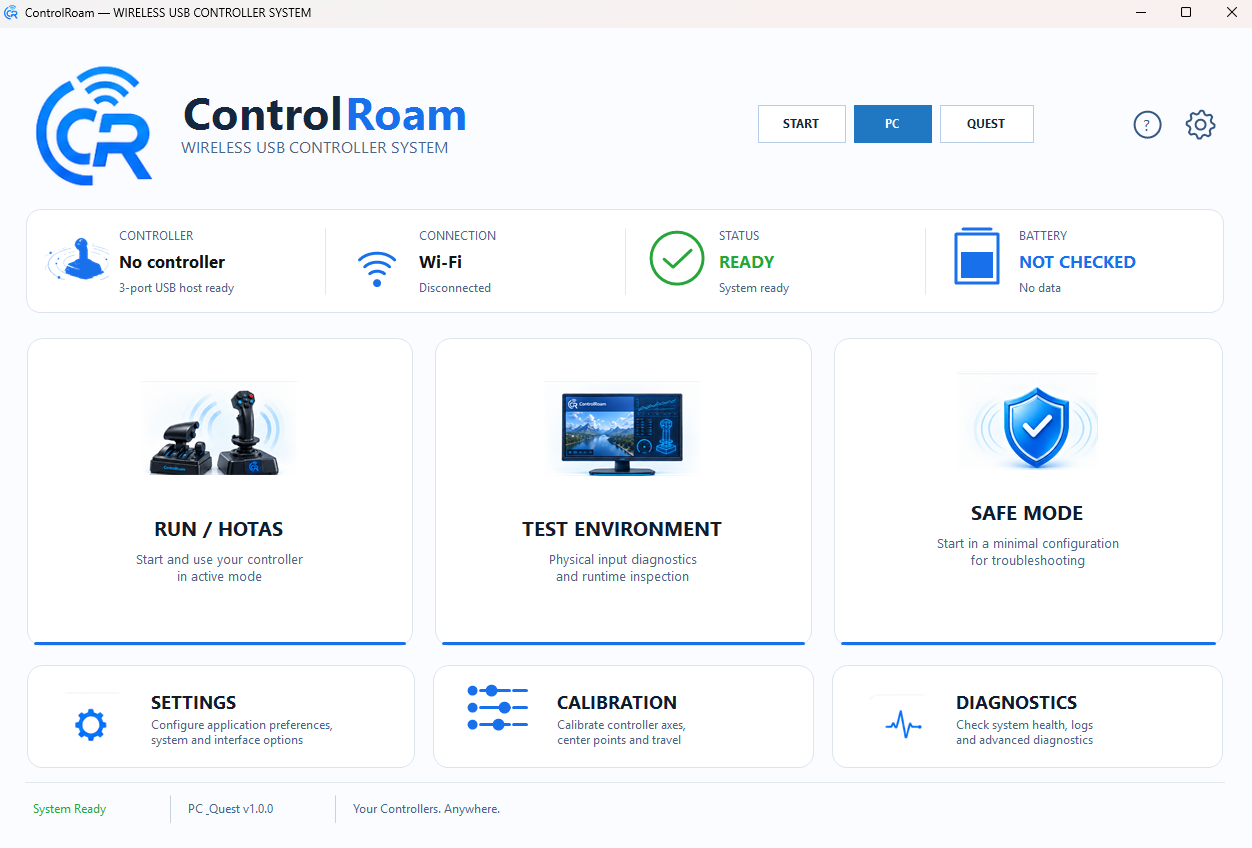
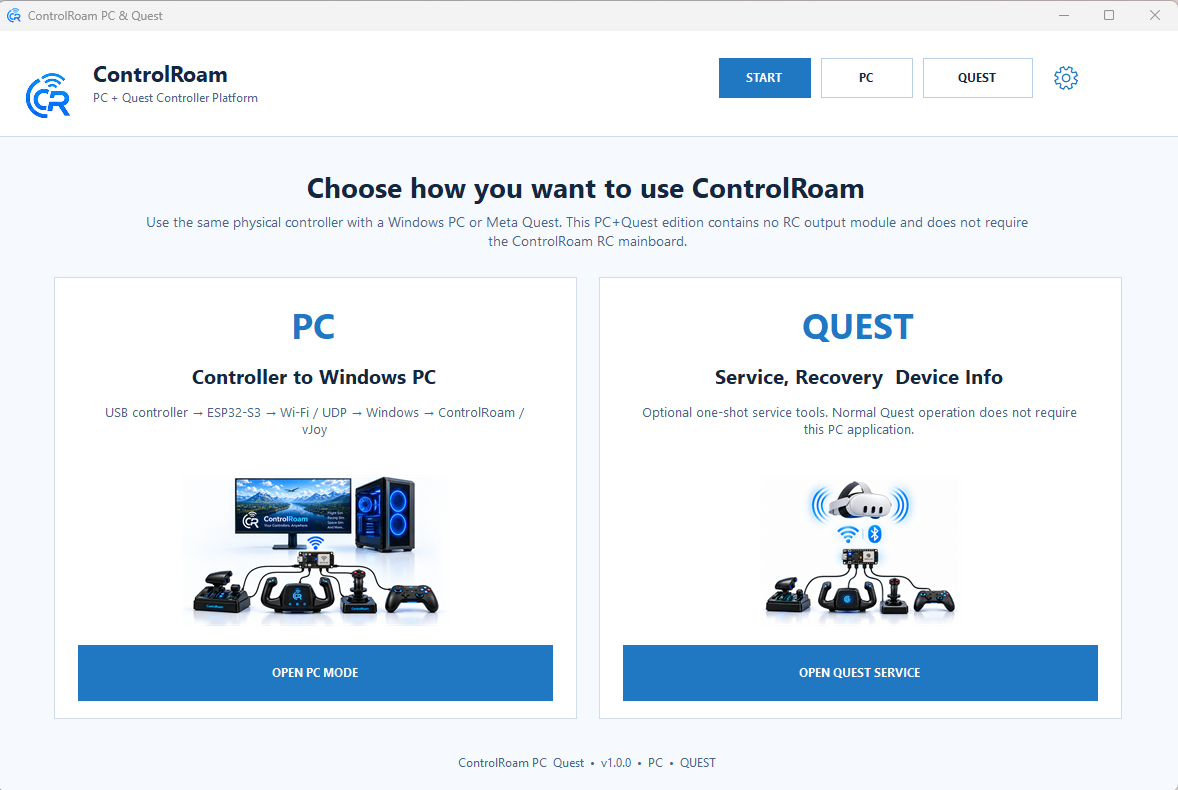
ControlRoam Input Hub and ControlRoam PC start screen
Real ControlRoam v1.0.0 UI
Quest FREENo license required
Direct BluetoothStandalone gamepad input
ProfilesAssignments & calibration
Optional companionWi-Fi Native / S3 bridge
ControlRoam PCLicensed separately
Optional ControlRoam companion

Direct Gamepad is standalone. Companion hardware is optional.

ControlRoam Input Hub can also be used with the optional ControlRoam ecosystem. With compatible ESP32-S3 hardware, supported external USB controllers can be connected through Wi-Fi Native or Bluetooth Bridge.

USB

Compatible USB HID controller

Examples include joysticks, yokes, throttle controllers and other compatible USB HID devices.

→
S3

ESP32-S3 companion

Optional for Quest companion modes; required by the separately licensed ControlRoam PC workflow.

→
Meta Quest Wi-Fi Native or Bluetooth Bridge
Windows PC Wi-Fi → ControlRoam PC → vJoy / game input

Companion modes extend the available controller connection methods without changing the free status of the Quest application.

Quest FREE + PC Commercial

Two products, clearly separated

ControlRoam Input Hub for Quest is free. ControlRoam PC for Windows remains a separately licensed commercial product.

ControlRoam PC — Windows

Run supported controllers through the compatible ESP32-S3 over Wi-Fi to Windows. ControlRoam PC handles discovery, vJoy output, diagnostics, setup and firmware tools.

Commercial vJoy ESP32-S3 Lifetime license
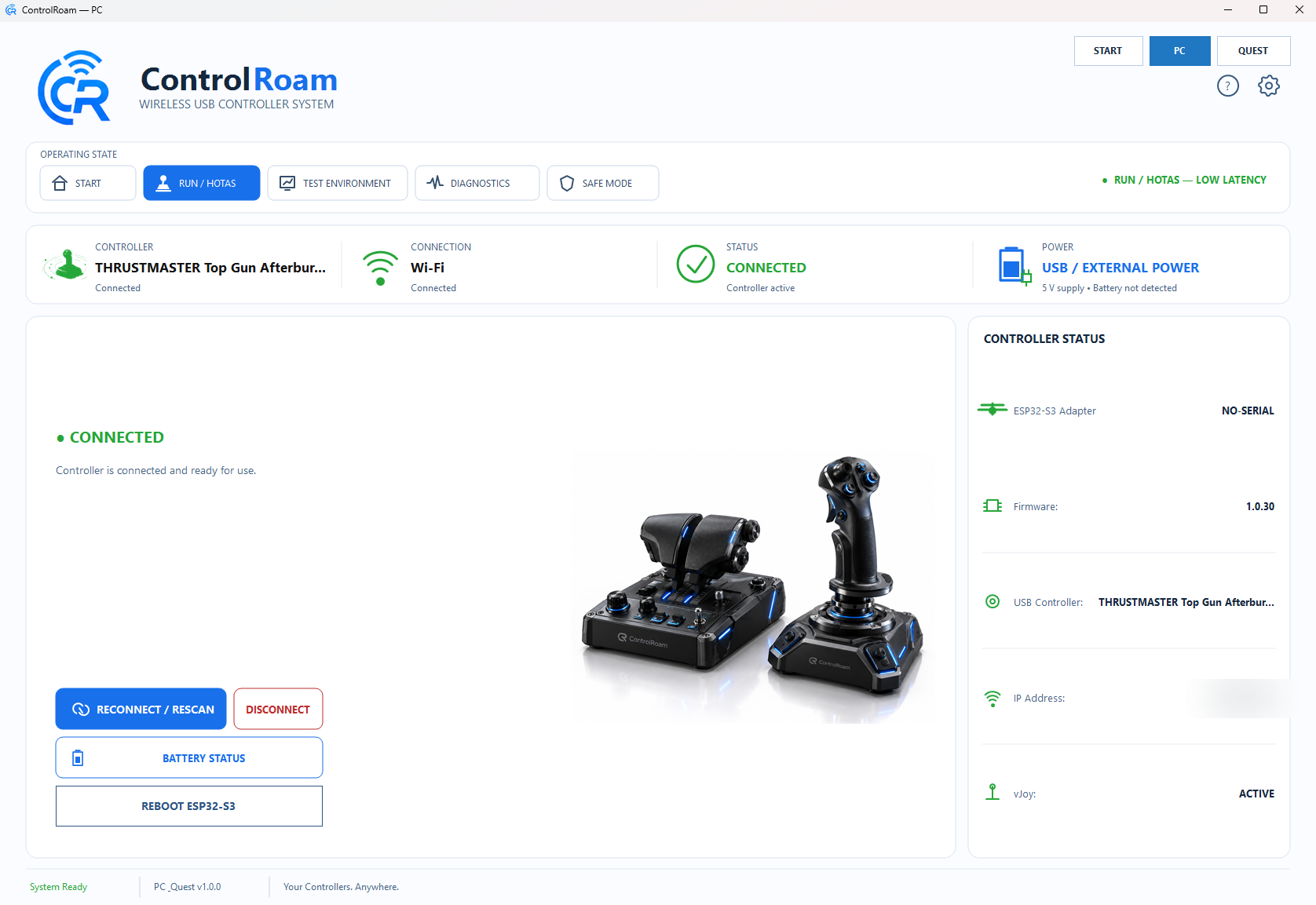
ControlRoam PC Run HOTAS screen showing a connected controller

ControlRoam Input Hub — Meta Quest

ControlRoam Input Hub is a free controller management and testing application for Meta Quest. Connect compatible Bluetooth gamepads directly to your headset, monitor controller inputs, configure profiles and calibration, and manage active devices.

Direct Gamepad works standalone. No PC, ESP32-S3 hardware, account, serial number, activation, subscription or ControlRoam PC license is required.

FREE Direct Gamepad Profiles Controller Finder
Privacy Policy →
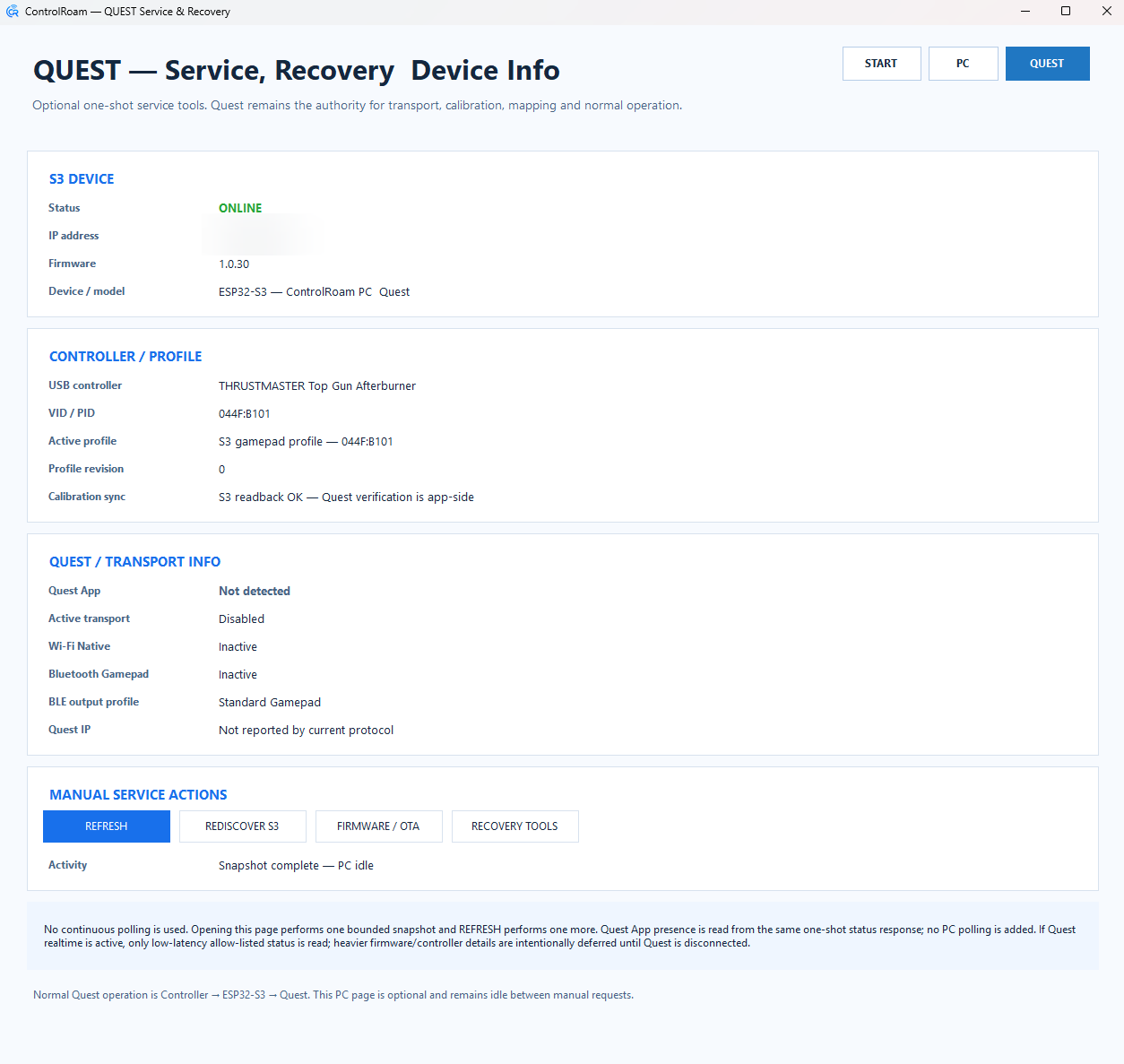
ControlRoam Input Hub Quest service and device information screen
FREE features

ControlRoam Input Hub — Meta Quest

These features belong to the free Quest application. They do not require a ControlRoam PC license.

⌁

Direct Bluetooth Gamepad

Use compatible Bluetooth gamepads directly with the headset.

●

Live Input Testing

Monitor controller axes, buttons and supported directional controls in real time.

◎

Active Controller Selection

Select which connected gamepad Input Hub reads for its own monitoring and tools.

▤

Controller Profiles

Keep named per-controller profiles for assignments and calibration.

↕

Axis Calibration & Assignments

Configure per-axis calibration and logical control assignments inside Direct Gamepad.

▦

Multi-Controller Management

View connected gamepads and choose the active device used by Input Hub.

⌖

Controller Finder

Save a controller location and use the Finder view to return to that saved place later.

◈

Mixed-Reality Assistance

Use Quest spatial features to support Controller Finder and the in-headset interface.

☾

Quest Sleep/Wake Recovery

Restore the Input Hub session and saved controller context after headset pause/resume where supported.

Input Hub manages and tests controller input inside the application. It does not claim universal compatibility with every Quest title and does not provide system-wide controller remapping for third-party apps.
Download ControlRoam Input Hub — FREE

Choose how you want to install ControlRoam Input Hub on your Meta Quest.

The official Meta Horizon Store route is planned but not yet public. Direct APK installation is available now as a free manual installation option.

Coming soon

Meta Horizon Store

The easiest way to install ControlRoam Input Hub. Download it free through the official Meta Horizon Store when available.

FREEOfficial StoreNo sideloading when live
COMING SOON TO META HORIZON STORE
FREE · v1.0.0

Direct APK Download

Download the ControlRoam Input Hub APK directly from FlyingForFun and install it manually on your Meta Quest.

FREEVersion 1.0.0Android APKNo Quest license requiredManual installation
APK DOWNLOAD SETUP PENDING

Manual Installation Requirements

Direct APK installation requires Developer Mode to be enabled on your Meta Quest headset. You may also need to authorize USB debugging and use ADB or a compatible sideloading tool to install the downloaded APK. If you prefer a simpler installation process, use the Meta Horizon Store version once it becomes available.

  1. Enable Developer Mode on your Meta Quest.
  2. Connect your headset to a computer using USB.
  3. Allow USB debugging when prompted.
  4. Install the APK using ADB or a compatible sideloading tool.
  5. Launch ControlRoam Input Hub from the appropriate applications section on your Quest.

Official Meta developer-mode setup documentation →  ·  ControlRoam Input Hub Privacy Policy →

Controller compatibility

Broad USB HID Controller Compatibility

Not limited to a fixed controller list. ControlRoam reads the USB HID descriptor exposed by the connected controller and dynamically detects available axes, buttons and HAT switches.

Your controller does not need to be hard-coded by model

This generic HID approach allows ControlRoam to work with a broad range of joysticks, HOTAS systems, yokes, throttles, rudder pedals, steering wheels and game controllers when they expose a compatible USB HID interface.

16 axes · input limit
128 buttons · input limit
4 HATs · input limit

Input-layer capacity: ControlRoam can represent up to 16 axes, 128 buttons and 4 HAT switches. The controls actually available depend on what the connected device reports through its HID interface.

Compatibility note: Some proprietary, non-standard or unusual HID layouts may require a specific ControlRoam compatibility update.
Free pre-purchase tool

Not sure if your controller is compatible?

Check it free before buying.

1
ConnectPlug the joystick/HOTAS directly into the PC.
2
DetectRead VID/PID and the USB HID descriptor.
3
ResultSee detected axes, buttons, HATs and compatibility status.
✓ VERIFIED COMPATIBLE
✓ LIKELY COMPATIBLE
⚠ COMPATIBLE WITH LIMITATIONS
? REVIEW NEEDED

Runs locally in your browser. No controller data is uploaded.

See ControlRoam in action

Real software. Real screens.

Click any screenshot to enlarge it. Local addresses, hardware IDs and other private test information have been blurred.

ControlRoam PC dashboard
PC DashboardController, connection and operating-state overview.
ControlRoam Run HOTAS connected controller screen
RUN / HOTASNormal Windows runtime and controller status.
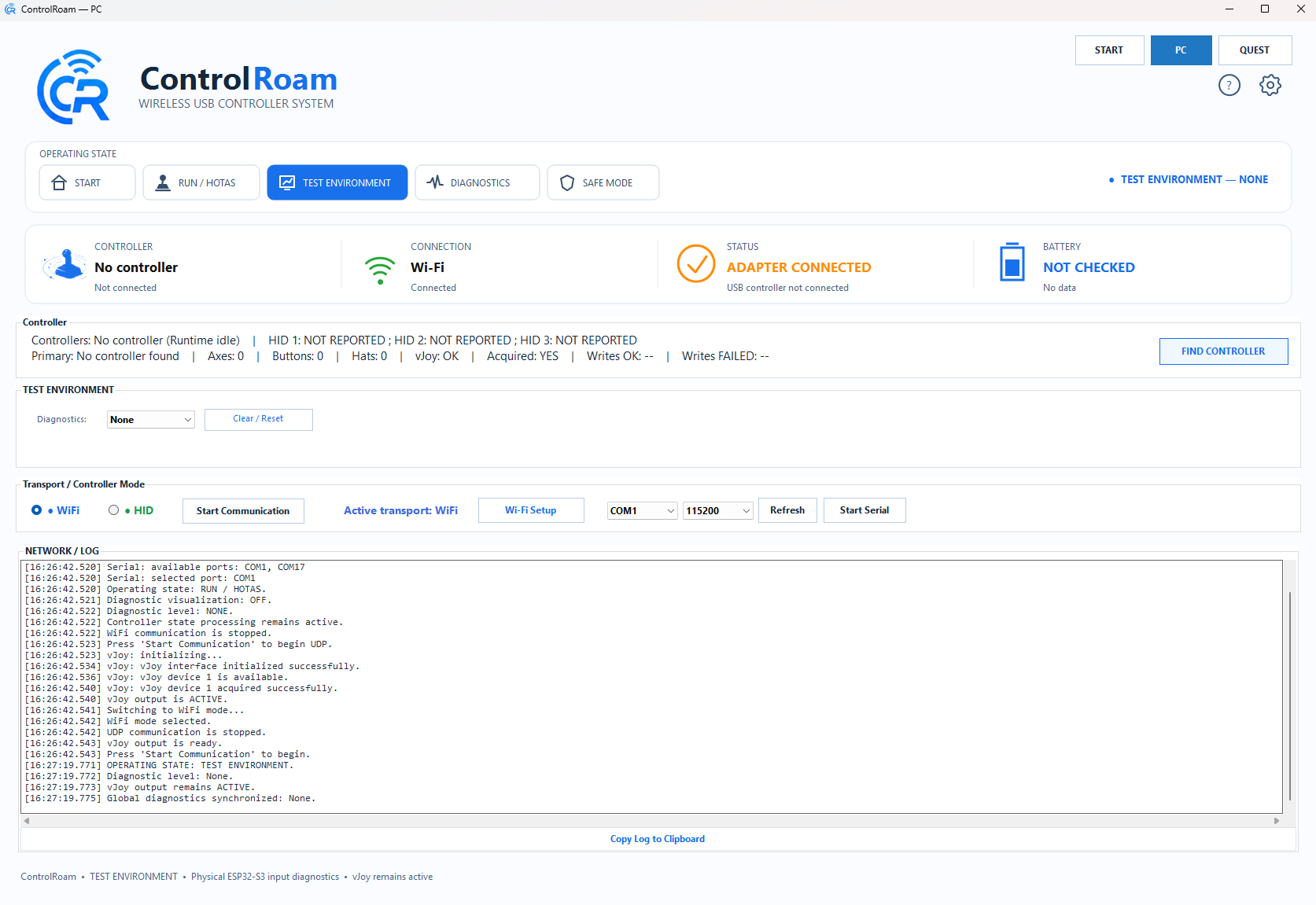
ControlRoam test environment
Test EnvironmentTransport controls, controller discovery and logs.
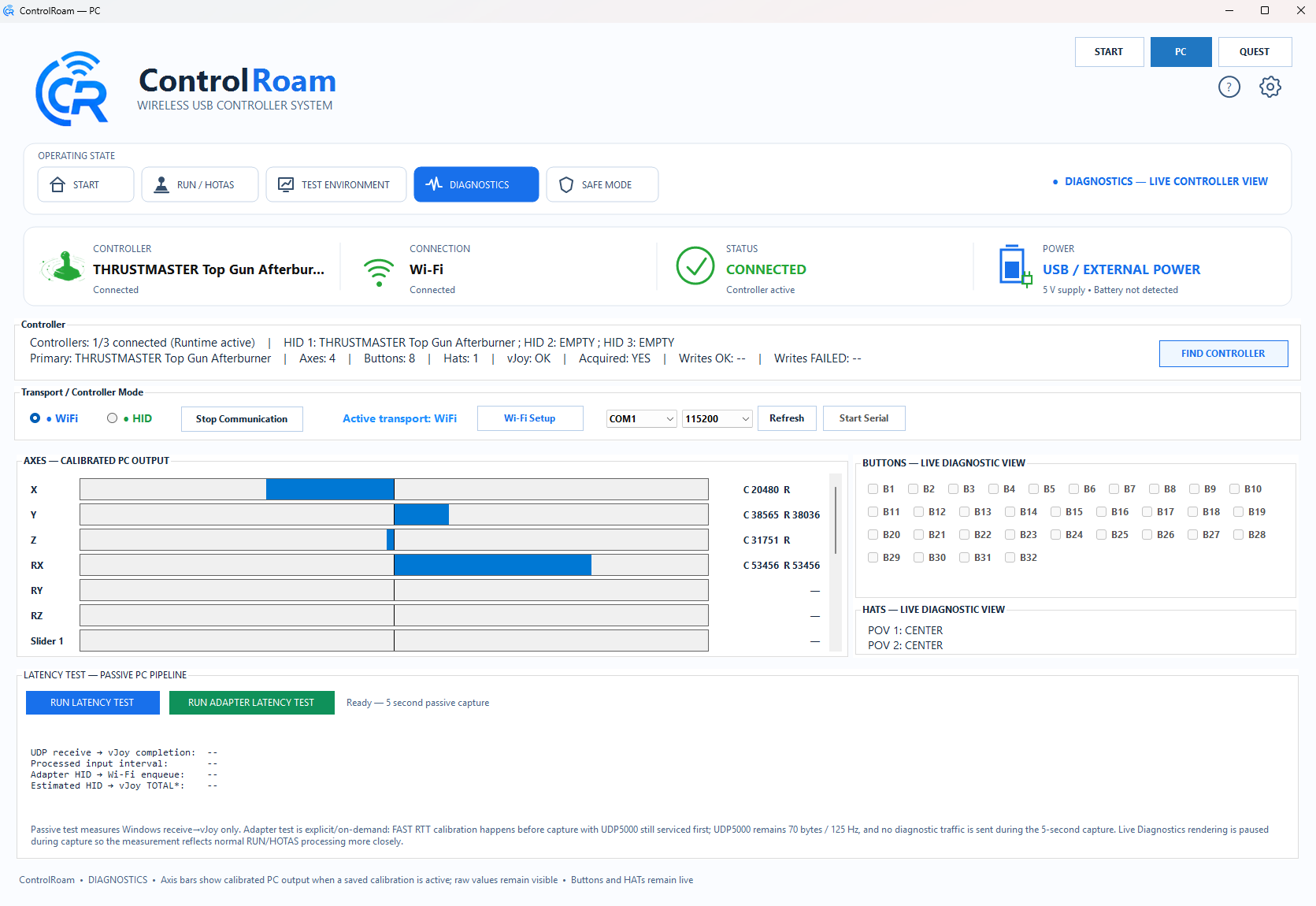
ControlRoam live diagnostics axes buttons and hats
Live DiagnosticsAxes, buttons, HATs and latency tools.
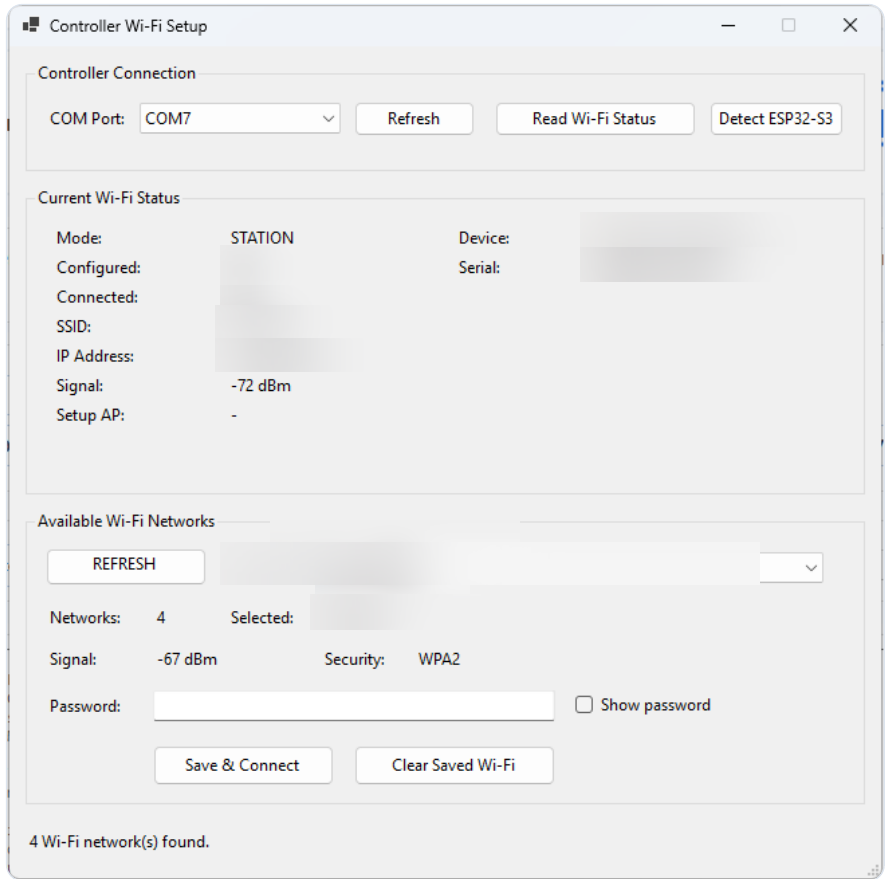
ControlRoam controller Wi-Fi setup window with private test data blurred
Controller Wi-Fi Setup2.4 GHz setup and connection verification.
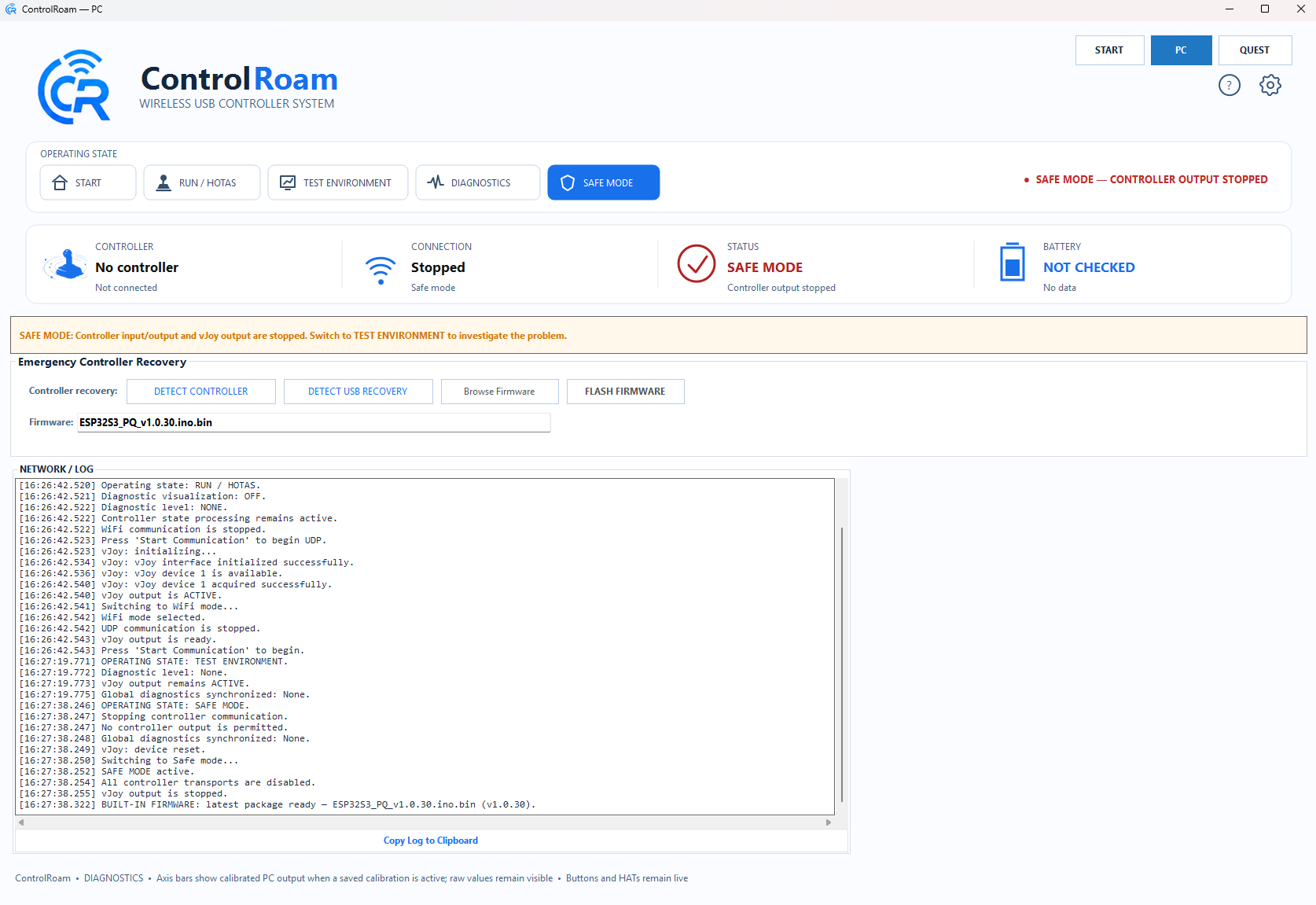
ControlRoam Safe Mode and emergency firmware recovery
Safe Mode & RecoveryFirmware recovery and hardware-identification tools.
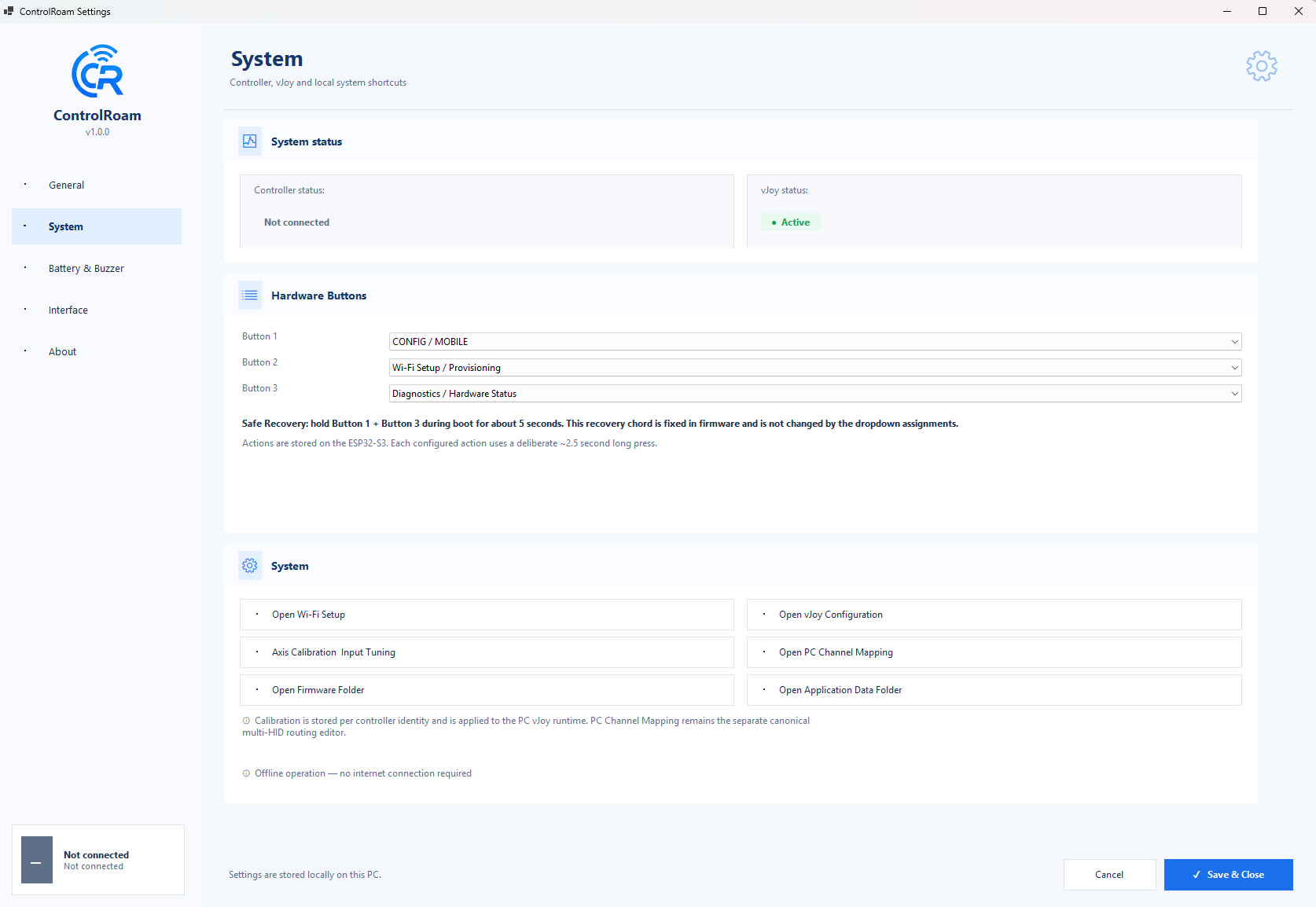
ControlRoam system settings
System SettingsLocal configuration and system shortcuts.
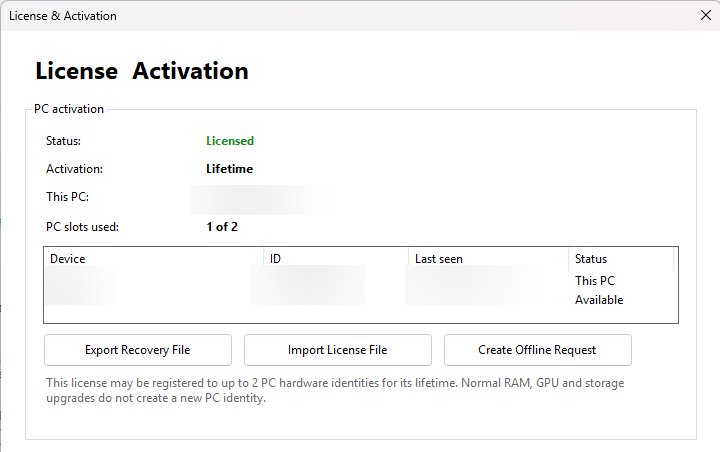
ControlRoam license activation screen with personal identifiers blurred
License & ActivationLifetime hardware entitlement management.
ControlRoam Quest service recovery and device info screen with local IP blurred
Quest ServiceDevice info, transport state and manual service actions.
Firmware, Wi-Fi & recovery

Setup tools are built into the workflow

ControlRoam uses the least invasive path first: normal setup/update when possible, Safe Mode recovery only when needed.

Controller Wi-Fi Setup with private values blurred

Controller Wi-Fi Setup

Uses the USB serial connection to read Wi-Fi status, scan 2.4 GHz networks, save credentials, restart the adapter and verify that it reconnects with a valid address.

Safe Mode emergency firmware recovery screen

Firmware & recovery

Safe Mode intentionally stops controller and vJoy output, then exposes controller detection, USB recovery and compatible firmware flashing tools when normal operation is not appropriate.

Firmware assistant flow
Writing
Restarting
Waiting
Verifying
Ready
Complete
During a physical flash the application keeps the user in one progress flow and verifies the device after restart. Do not disconnect USB or power while firmware is being written.
Diagnostics & latency

See what the controller is really doing

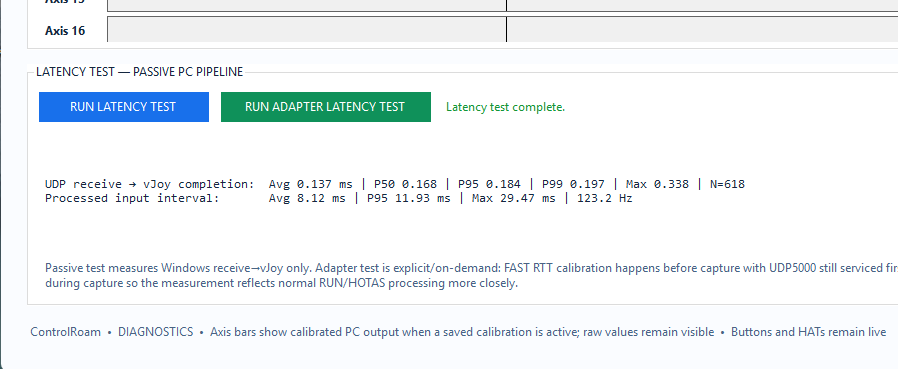
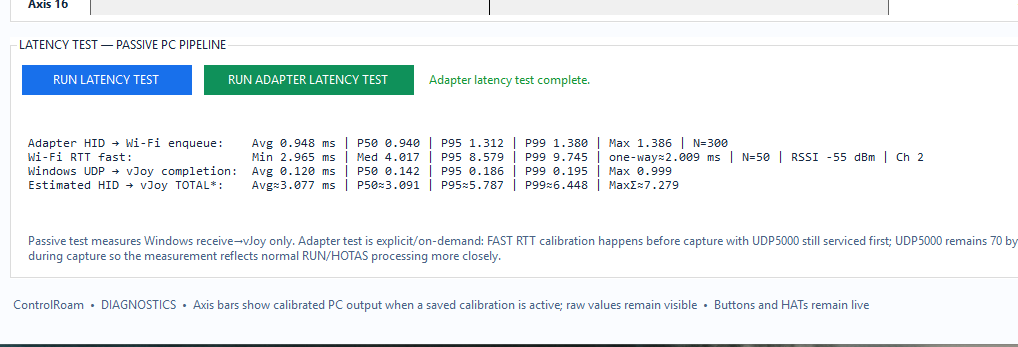
Inspect live input before changing firmware or game bindings, then measure the PC and adapter pipeline when needed.

ControlRoam diagnostics screen with live axes buttons and hats
ControlRoam passive PC latency result Passive PC pipeline test
ControlRoam adapter latency result Adapter end-to-end test
Real hardware setup

Controller → ESP32-S3 → PC or Quest

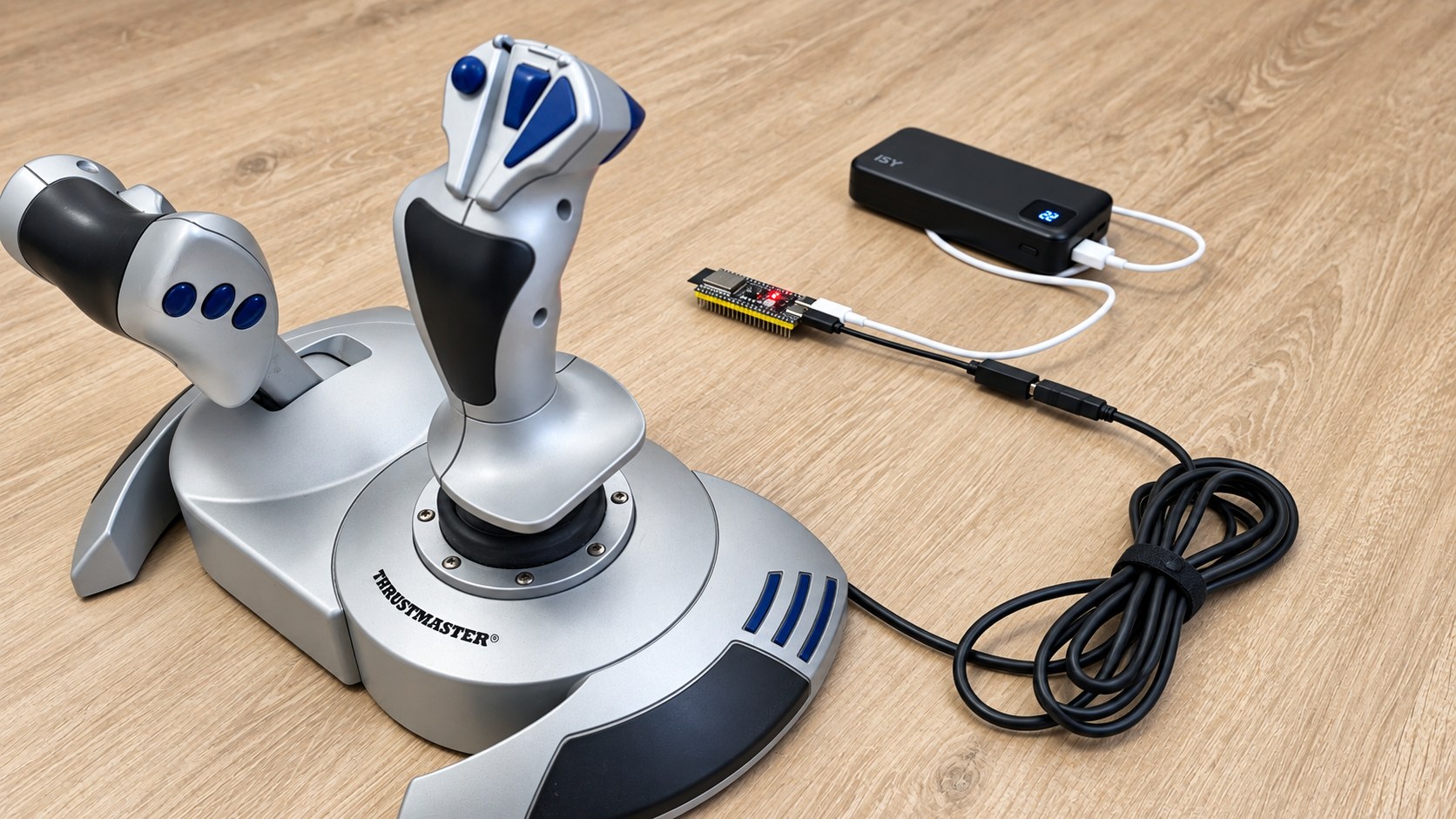
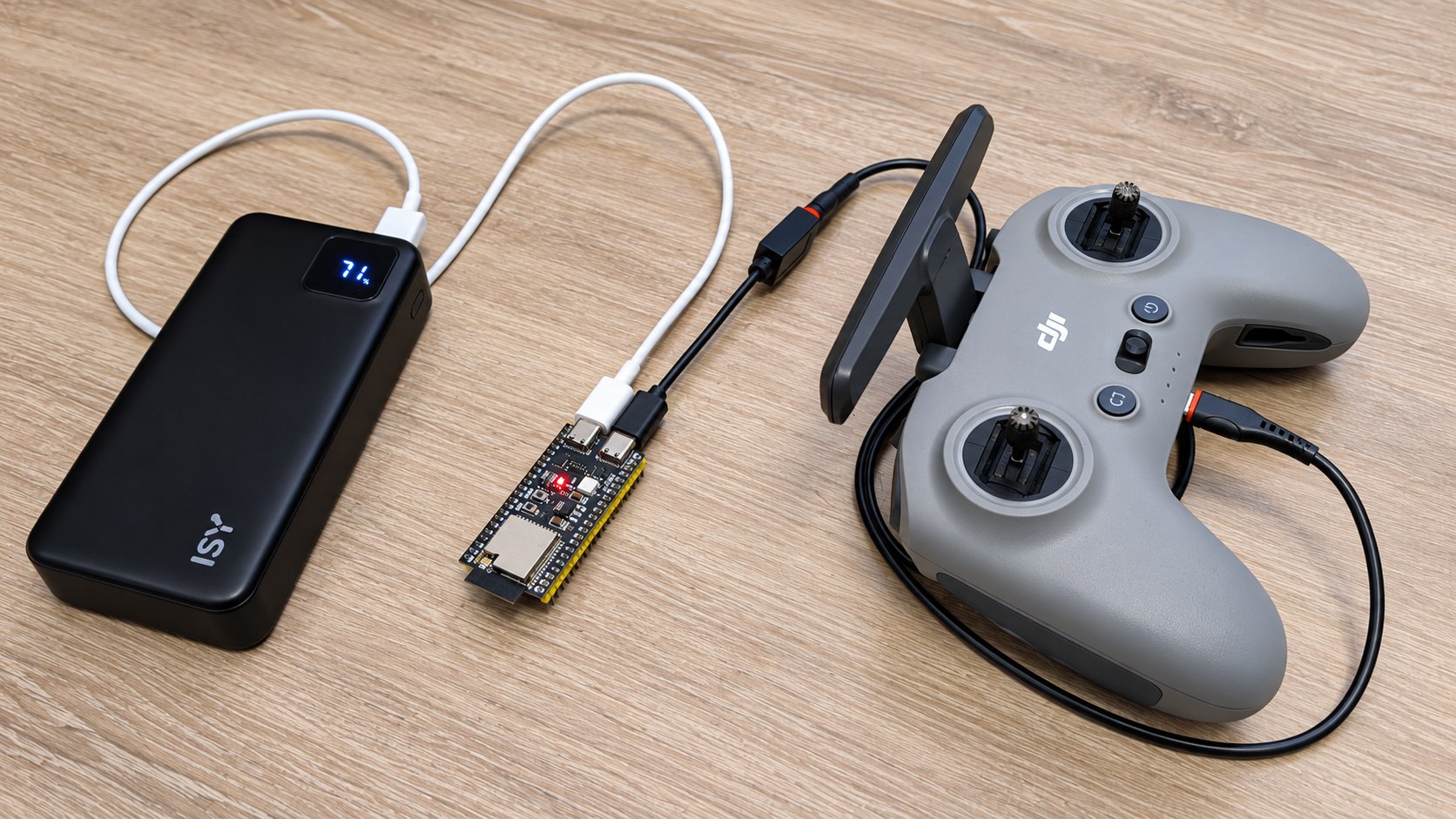
These photos show real ControlRoam test setups. Controllers, cables and power sources shown are examples and are not included with the software license.

Real Thrustmaster joystick connected to ESP32-S3 ControlRoam setup
Real USB joystick + ESP32-S3 setup with external USB power during testing.
Real controller and ESP32-S3 ControlRoam hardware setup
Real controller + ESP32-S3 setup showing the simple physical connection path.

Required hardware

ControlRoam PC & Quest is a software + firmware product only. It requires a compatible ESP32-S3 N16R8, 44-pin development board with dual USB-C ports. The board is not included in either license and must be obtained separately.

ESP32-S3N16R8
Flash16 MB
PSRAM8 MB
Board44-pin, dual USB-C
Quest FREE / PC Commercial

ControlRoam Input Hub and ControlRoam PC are separate products

The free Quest application does not consume or require a ControlRoam PC license slot.

ControlRoam Input Hub — Quest

  • FREE Meta Quest application.
  • No FlyingForFun account, serial number, activation, subscription or ControlRoam PC license is required for Direct Gamepad.
  • Direct Bluetooth Gamepad works standalone with compatible controllers.
  • Wi-Fi Native and Bluetooth Bridge are optional ControlRoam companion modes.
  • See download and installation options.
  • Read the Privacy Policy.

ControlRoam PC — Windows

  • Commercial Windows product licensed separately.
  • Standard provides one Windows PC activation.
  • Dual provides two Windows PC activations.
  • Existing secure checkout, server-side payment verification and PC activation remain unchanged.
  • Compatible ESP32-S3 hardware is required for the ControlRoam PC controller workflow.
Quest Input Hub does not use the ControlRoam PC serial/activation flow.
ControlRoam PC lifetime license activation screen with identifiers blurred
ControlRoam PC License & Activation — applies to the Windows product only. Quest Input Hub is free.
ControlRoam PC licenses

Choose one or two Windows PC activations.

These licenses apply to ControlRoam PC for Windows. ControlRoam Input Hub for Meta Quest is free and does not require a license.

Standard

€9.99 EUR
1 Windows PC

Lifetime use on one activated Windows PC.

Buy Standard
Extra PC slot

Dual

€14.99 EUR
2 Windows PCs

Lifetime use on two activated Windows PCs.

Buy Dual
Applicable VAT/tax is shown at checkout.

Start free on Meta Quest — or add ControlRoam PC when you need it.

Use Direct Gamepad standalone on Quest, or add the optional ControlRoam ecosystem for additional connection methods. ControlRoam PC remains separately licensed.

Quest download options ControlRoam PC licenses
2015, Copyright AlbEAGLE
Terms of service   Privacy policy   Return policy